How to float/align content left and right in a Divi Text Module


<p><span style="display: inline-block; float: left;">OPTION #1 </span><span style="display: inline-block; float: right;">$25pp</span></p>

<p><span style="display: inline-block; float: left;">OPTION #1 </span><span style="display: inline-block; float: right;">$25pp</span></p>

I'm a freelance WordPress Developer and Project Manager. Specialize in WordPress, Woocommerce, Custom WordPress Theme and Plugin Development, and Shopify. Highly skilled in HTML5, CSS3, SCSS, JavaScript, jQuery, Ajax, ES6, Bootstrap, PHP and MySQL.

There is no built-in emmet shortcut in PhpStorm to insert a <?php ?> tag. But we can set it by Going to File -> Settings -> — IDE Settings — -> Live Templates For Mac User: PhpStorm->Preferences->Editor->Live Templates, click on the PHP and add new Live Template. On right sidebar click on “+” then: Abbreviation…
Are you looking to enhance user experience on your WooCommerce store? Adding custom login and logout buttons is a great way to start. Let’s walk through a simple way to create a dynamic WooCommerce login and logout button using a customizable shortcode. Understand the Code The snippet below is perfect for adding custom login/logout buttons…
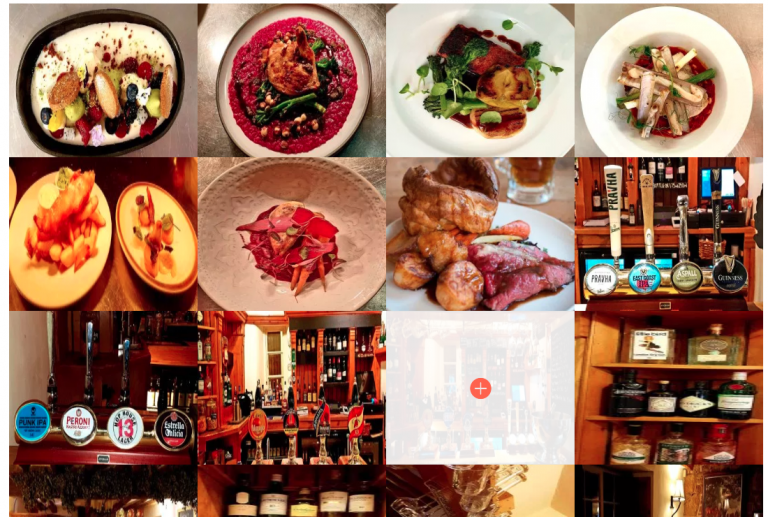
If you want to change the gallery image sizes, you can add the following CSS code into your Divi child theme CSS file or Theme Customizer Custom CSS box. Just edit the width and height pixel values to your own image sizes. This does not regenerate the image sizes used but just resizes in the…

It does seem a little odd that image left and right alignment is not included as a setting in the divi fullwidth slider module. By default when you place an image in fullwidth slider it places left side of the text, what if you want to place the image in right and text on left….
You can take a full page screen shot of any live website using Firefox build-in Web Development Tool. No need to install add-on or third party apps. If past and works well. Go to Tools > Web Developer > Developer Toolbar, then type screenshot –fullpage That’s it.
I have created a new VestaCP user beside admin to Host all my websites under the new user account. The new user works fine, I can access the website, I can log in vestaCP with the new user account, use FTP, add a new website, but what I cannot do is ssh to the new…
Can We Add More Under This but these must be alliged. in your code Text In New Line will Distorted